
Run your first clicks
Install Auto Clicker, check a preset in Click test, and learn to stop it.
Install and open
Get Auto Clicker from the Microsoft Store. Open it from Start. The app requires Windows 10 version 2004 or later, or Windows 11, on x64 or ARM64.
Select a preset
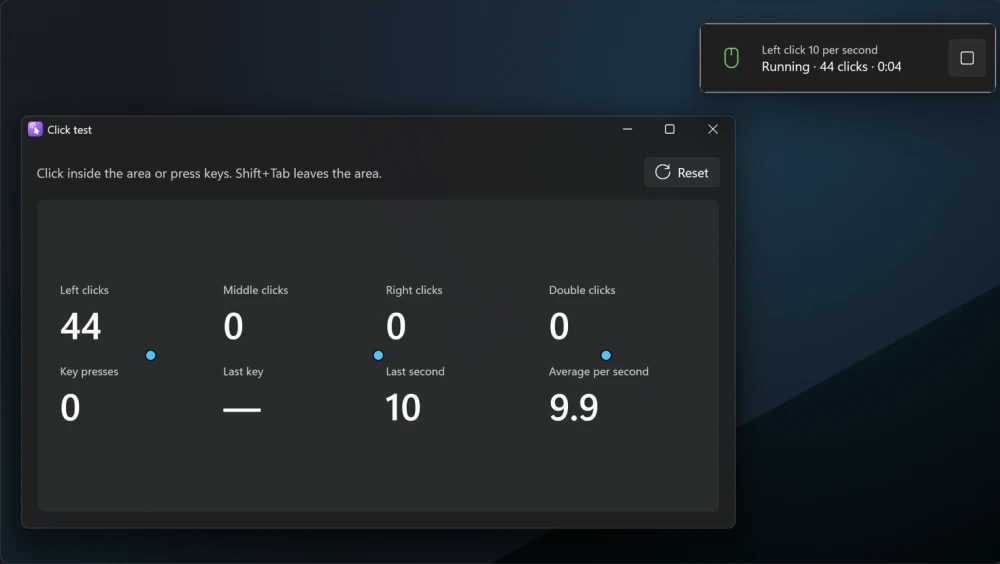
In Presets, select Left click 10 per second. It uses the current cursor position and keeps running until you stop it.
Open Click test
Select Click test at the bottom of the main window. Put the pointer inside the test area so the clicks land there.
Start and stop
Press F6 or select Start. When the countdown ends, watch the Left clicks counter. Press F6 again or select Stop in the mini window and confirm the counter stops.
Test another button
Choose the right-click or double-click preset and use the same test area. The window has separate counters and shows the measured clicks per second.