
Auto Clicker Wiki
Set up mouse clicks and key presses on Windows. Learn to run a preset, aim it at the right place, and stop it when you’re done.
Run your first clicks
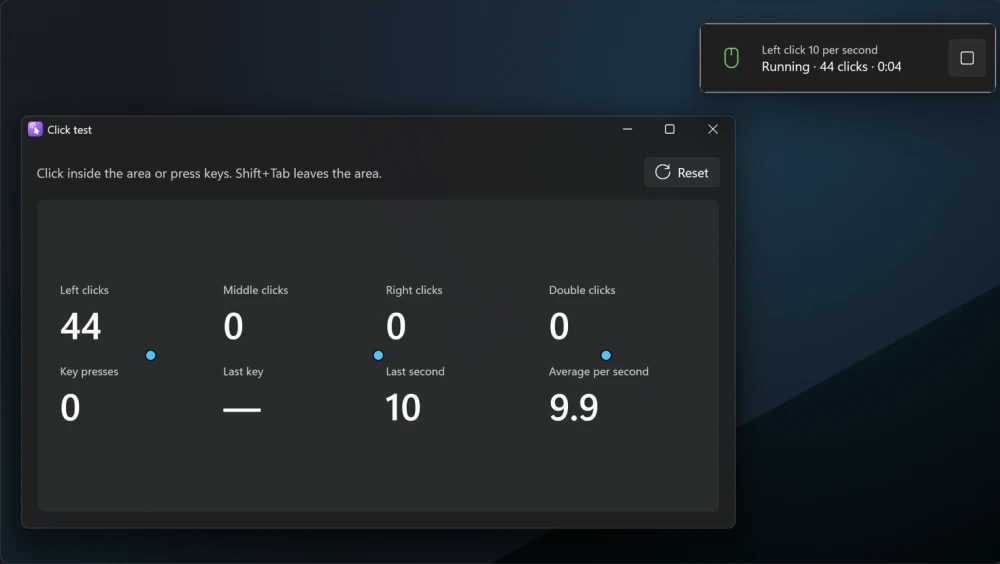
Try a preset in the app’s built-in Click test before aiming it at another window.
- Choose a preset.
- Open Click test and press F6.
- Press F6 again to stop.
Find a guide
- Choose where to clickFollow your pointer, save one location, or click a list of points in order.→
- Set interval, repeat and countdownChoose the click rate, button hold, and when your run ends.→
- Repeat a key or shortcutUse a built-in key preset or set up your own combination.→
- Create and manage presetsKeep separate settings for the jobs you repeat.→
- Change shortcuts and use the mini windowKeep Start, Stop and position capture within reach.→
- Troubleshoot clicks and shortcutsWork through missing clicks, pauses, shortcut conflicts and unexpected speed.→